
How can we help?
-
Canon
-
Sharp
-
Konica Minolta
-
HP
-
Xerox
-
Brother
-
Toshiba
-
Kyocera
-
Client Onboarding
Print
How to Print QR Codes For Your Copier
1. Navigate to the NovaVision portal
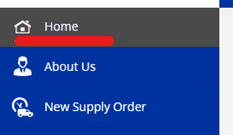
2. Click on the home tab.
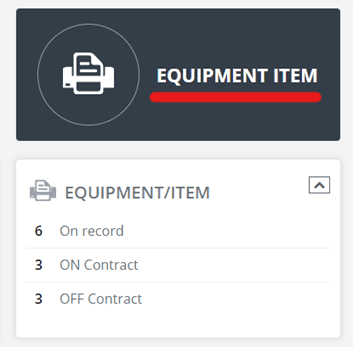
3. Click on the “Equipment Item” option.
4. Check the boxes on the right for the machines you would like to print codes for, and then click”QR Codes” at the top.
Avery 5360 labels are recommended but not required. If not using labels the codes can be printed on regular paper and taped to the copier.

5. Scan the QR code using your mobile phone’s camera app to place service and supply requests.
Table of Contents