-
Canon
-
Sharp
-
Konica Minolta
-
HP
-
Xerox
-
Brother
-
Toshiba
-
Kyocera
-
Client Onboarding
How to Install a Brother Printer on Windows
Navigate to the Brother Support Page
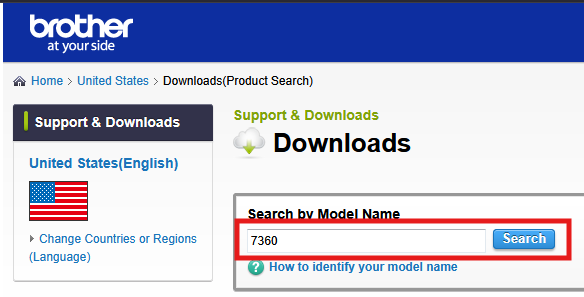
Type in the model of your printer and click search
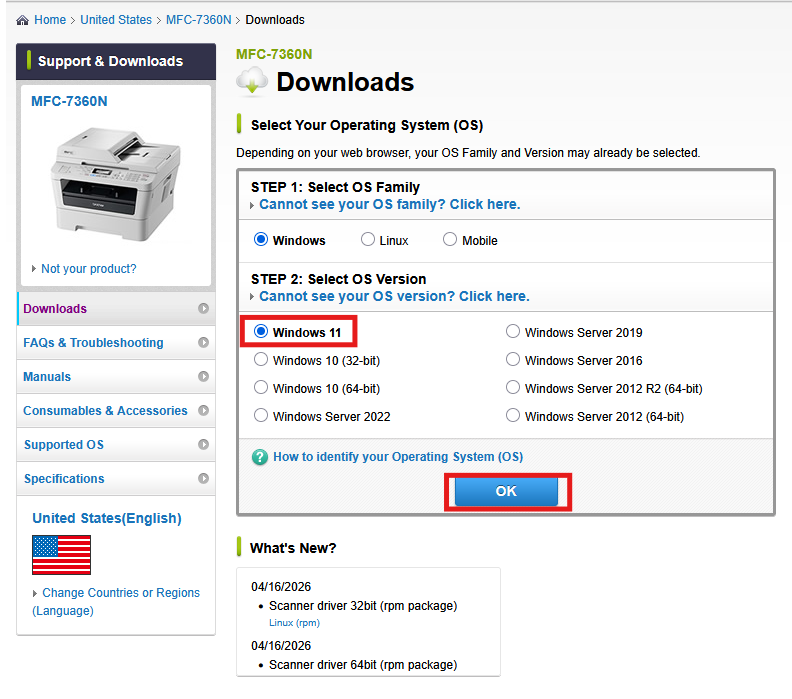
Select the correct version of windows and click OK
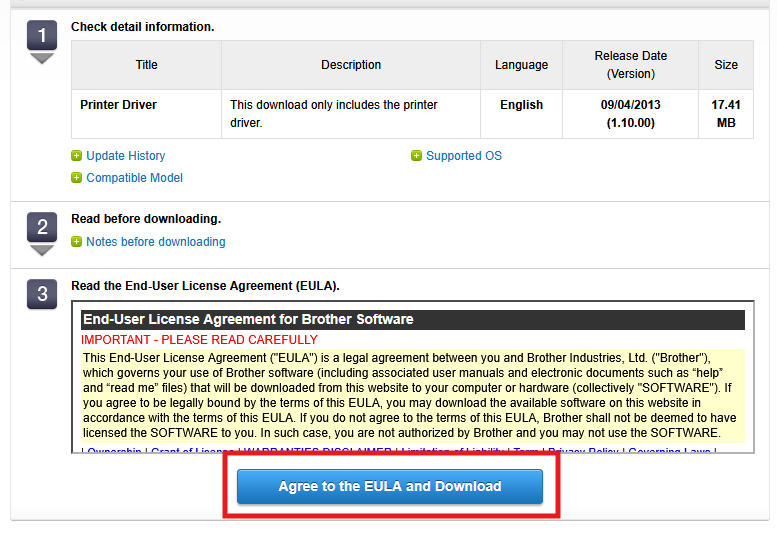
Under the Drivers section select Print Driver then accept and download the driver 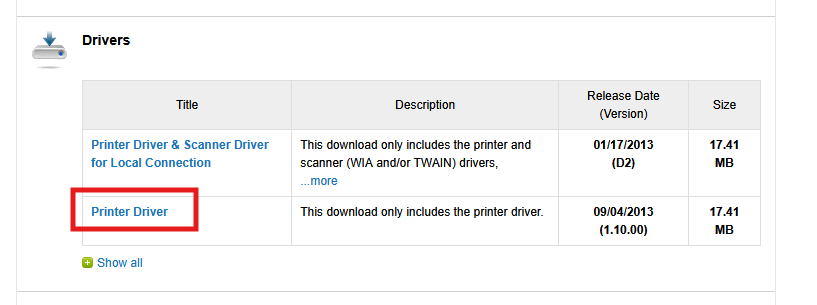
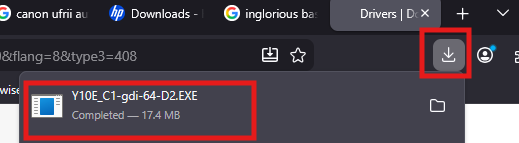
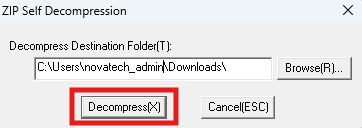
The download should pop up at the top of the browser, if not open it from your downloads folder and then click decompress
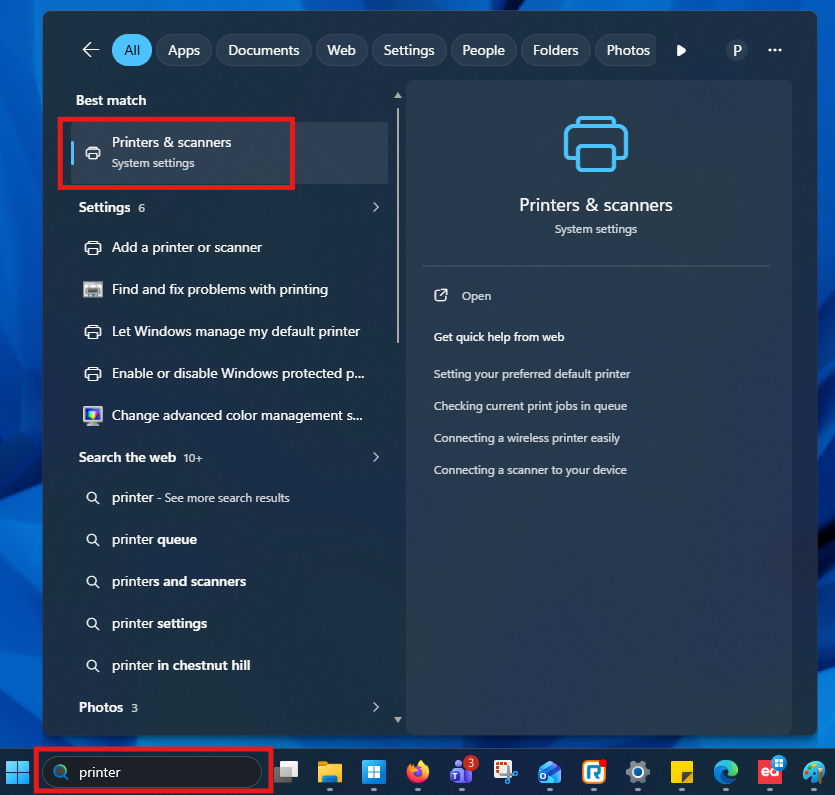
Right-click the “Windows” icon at the bottom of the screen and click “Settings”. Then Select “Bluetooth & devices” and then select “Printers & scanners”.
Select add device and then add device manually

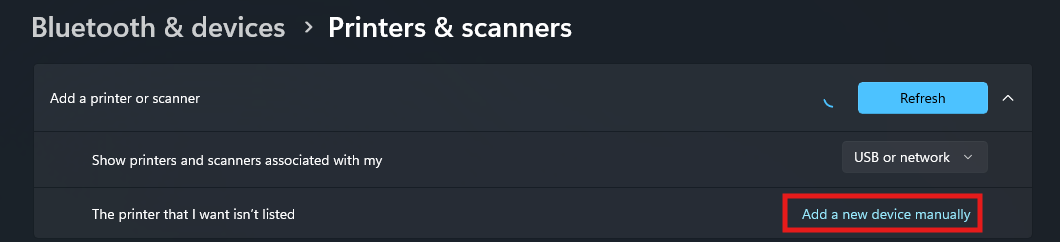
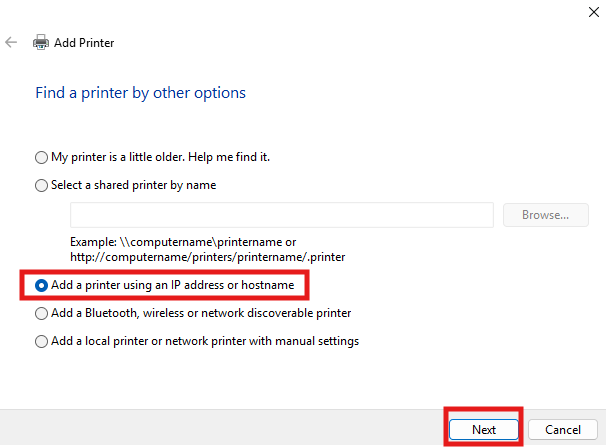
Select add printer with IP address and click next
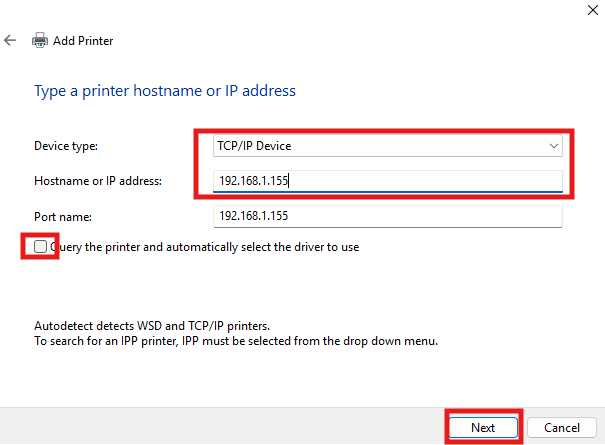
Choose TCP/IP from the drop down, enter the IP address, uncheck the box and click next
Click have disk, then browse
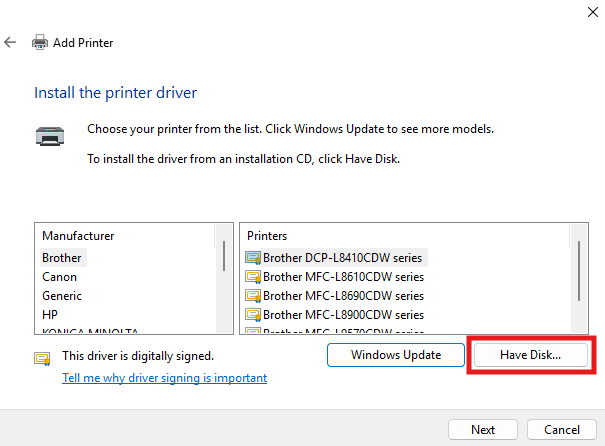
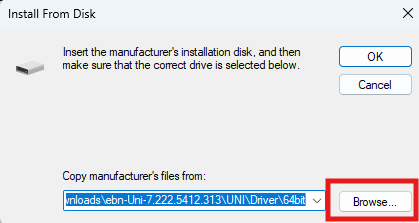
On the left select Downloads then the newest folder either 64 or could be called GDI, then open the AMD64 folder and select one of the setup files and click open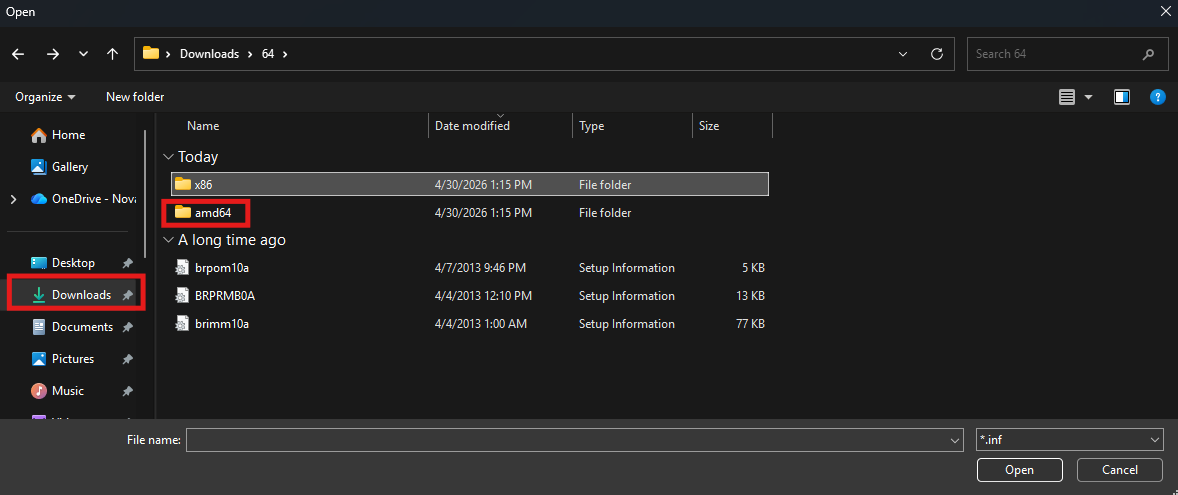
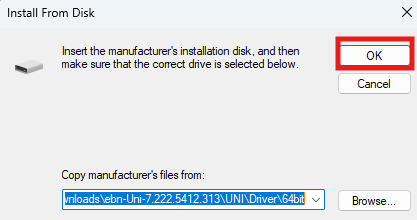
Click OK, select your model from the list and then click next
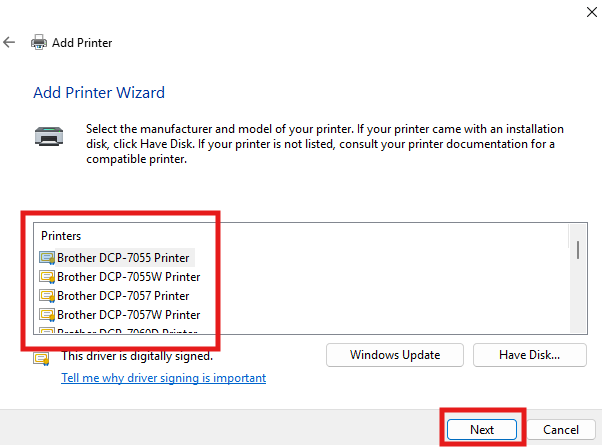
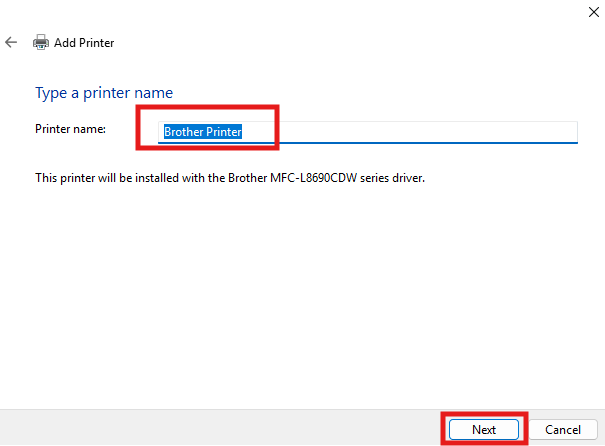
Name the printer or keep it as the default name and click next
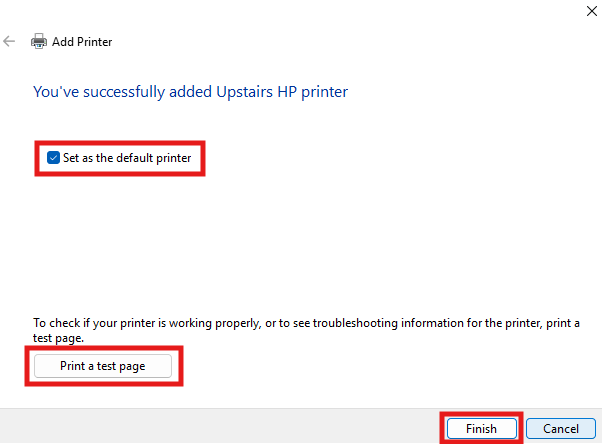
Decide if you want it to be your default printer then print a test page and click finish