-
Canon
-
Sharp
-
Konica Minolta
-
HP
-
Xerox
-
Brother
-
Toshiba
-
Kyocera
-
Client Onboarding
How to Install a Sharp Printer on Windows
Use the instructions below the video to use the automated install procedure
Navigate to the Sharp driver page
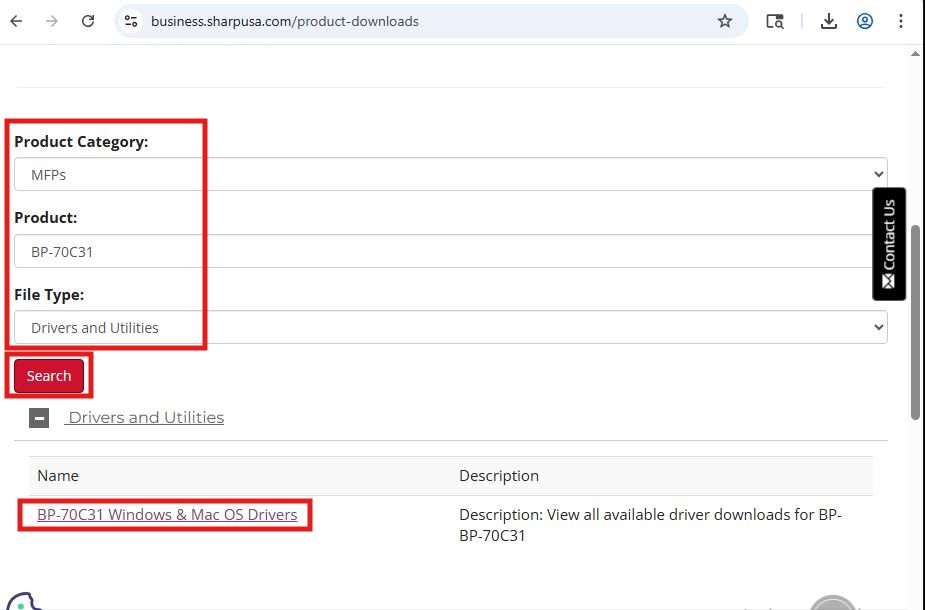
Select MFPs the model and then Drivers and Utilities in the 3 drop downs and click search, then click the link it generates
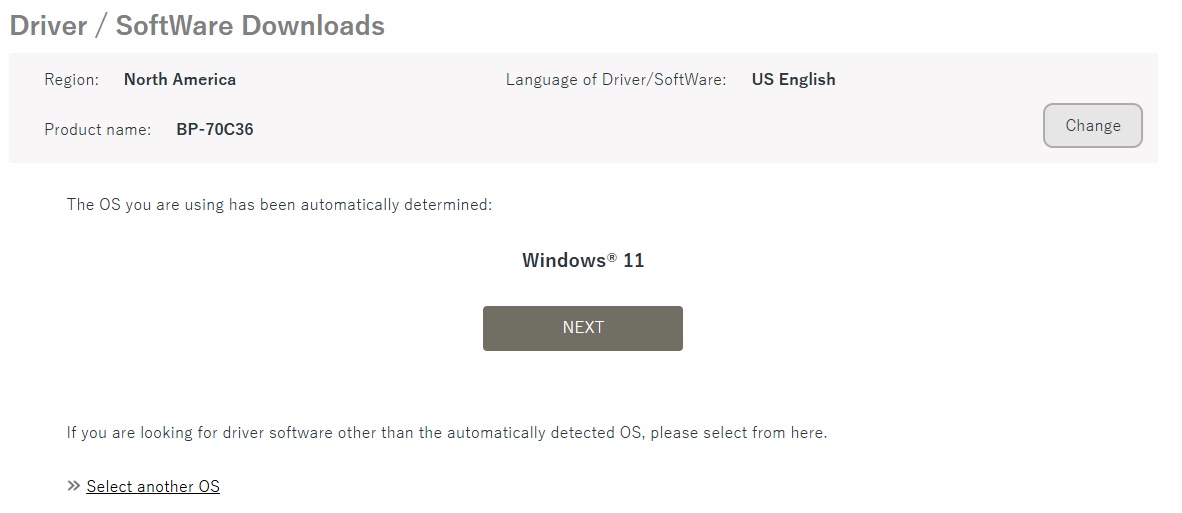
Verify the model and operating system are correct and then click next
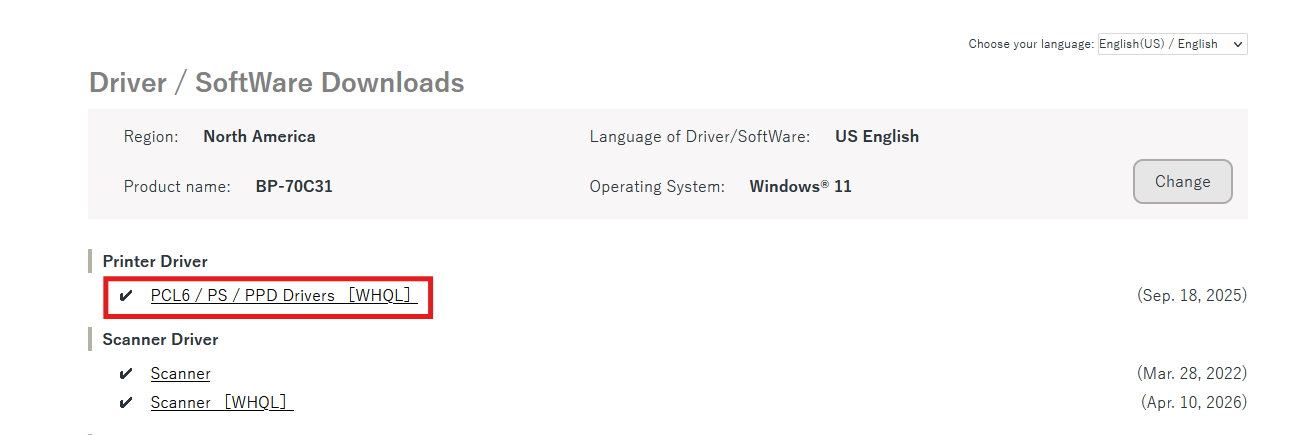
Click the PCL6 link under Printer Driver
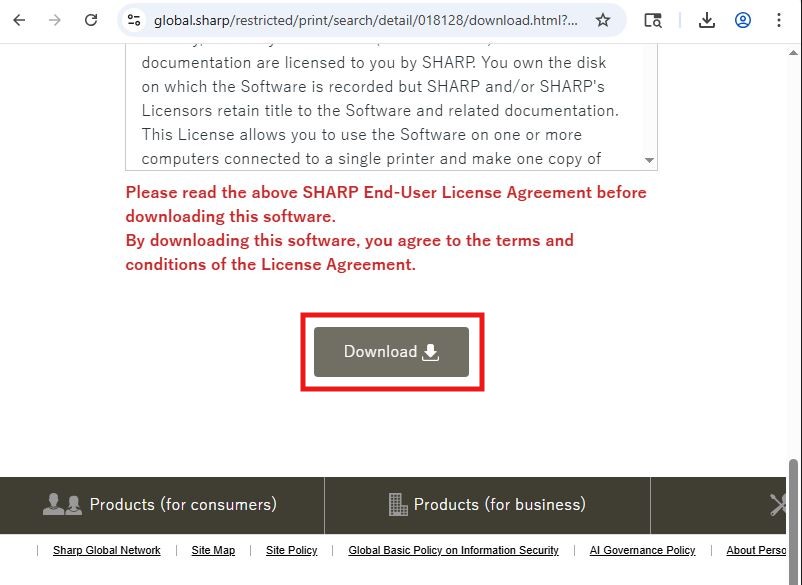
Scroll to the bottom of the page and click download
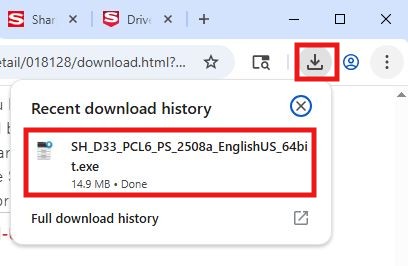
Open the file from the downloads section of your browser or from the downloads folder in the file explorer
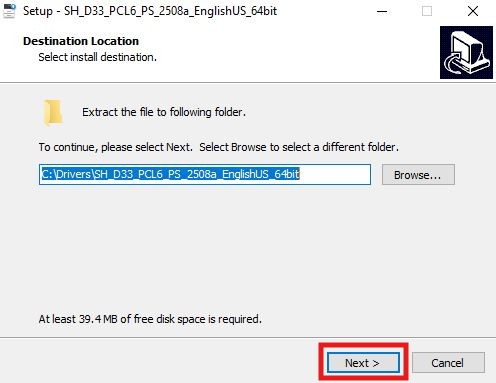
Click next to extract and run the program
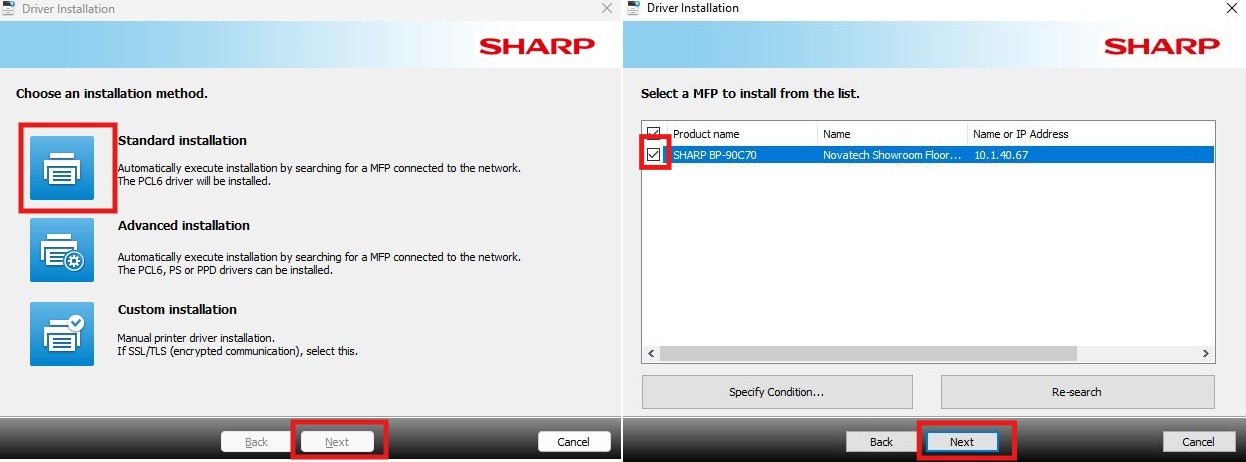
Select standard installation and wait for it to search the network, then select your printer/s from the list and click next
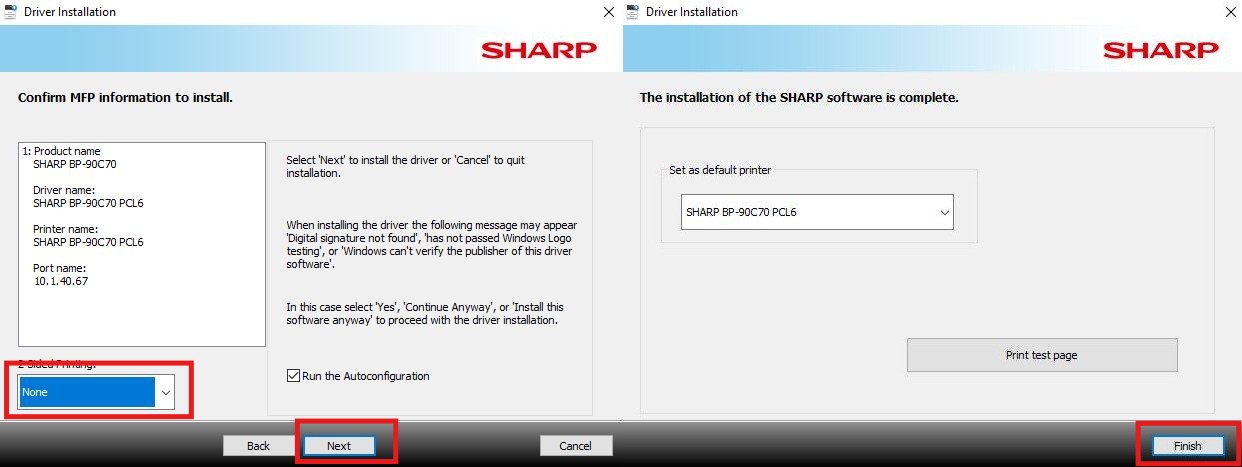
Select if you want 2 sided printing as a default or turn it off then click next and then click finish